
Canvas
Ideas from real homes, not stock photos.
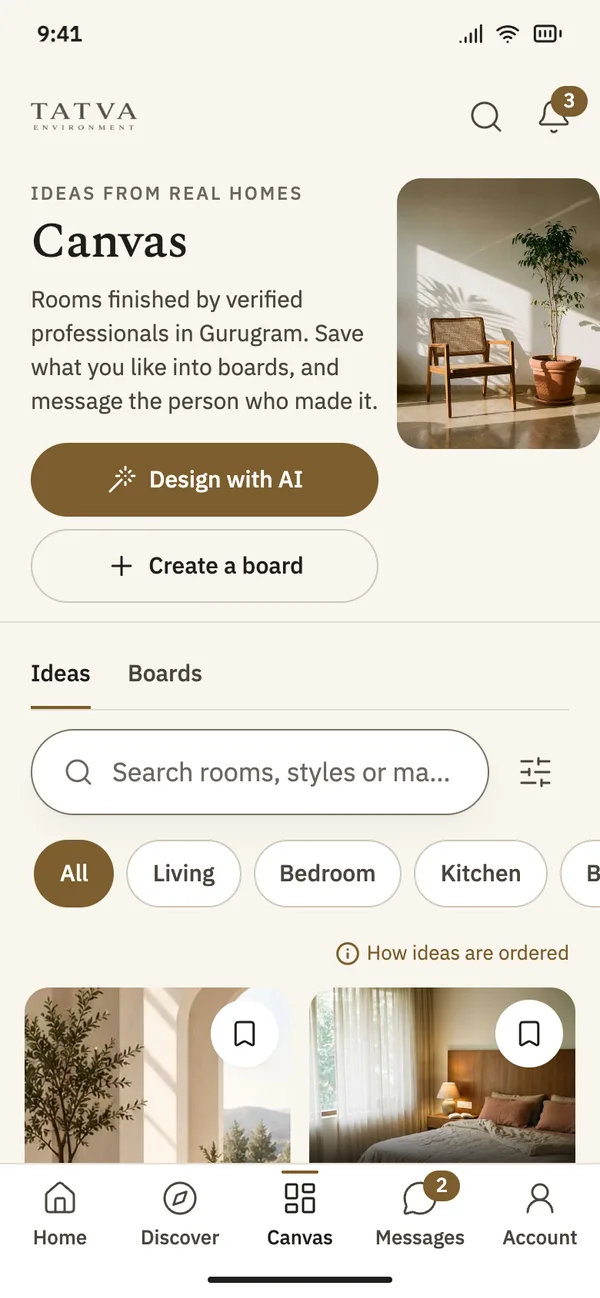
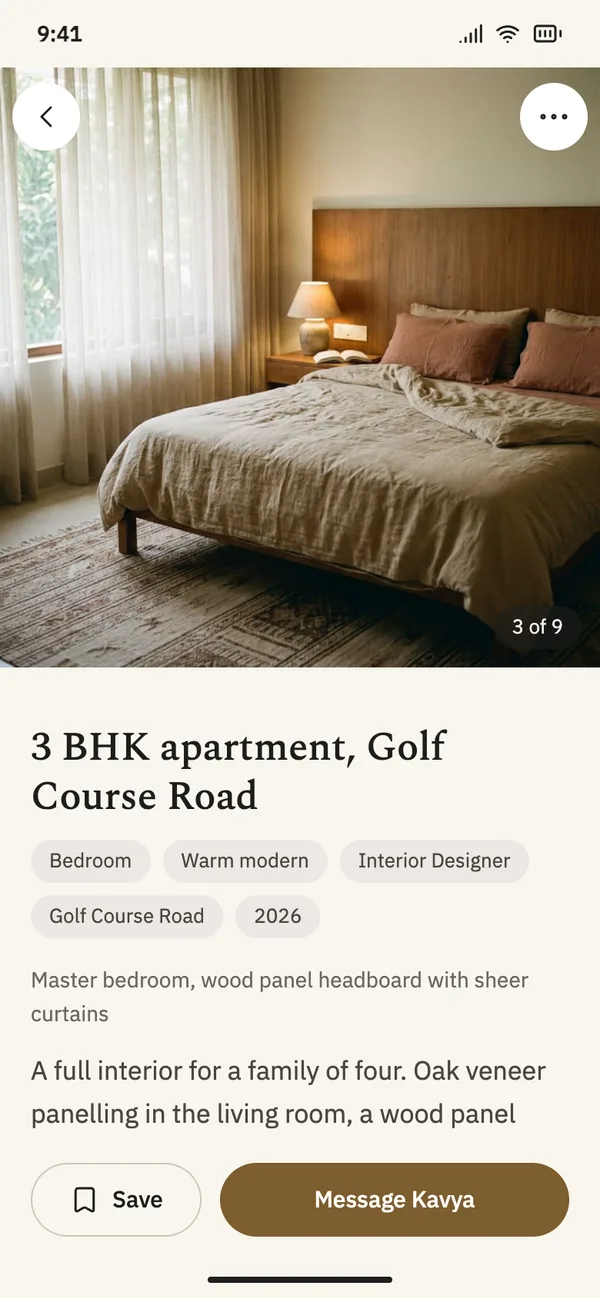
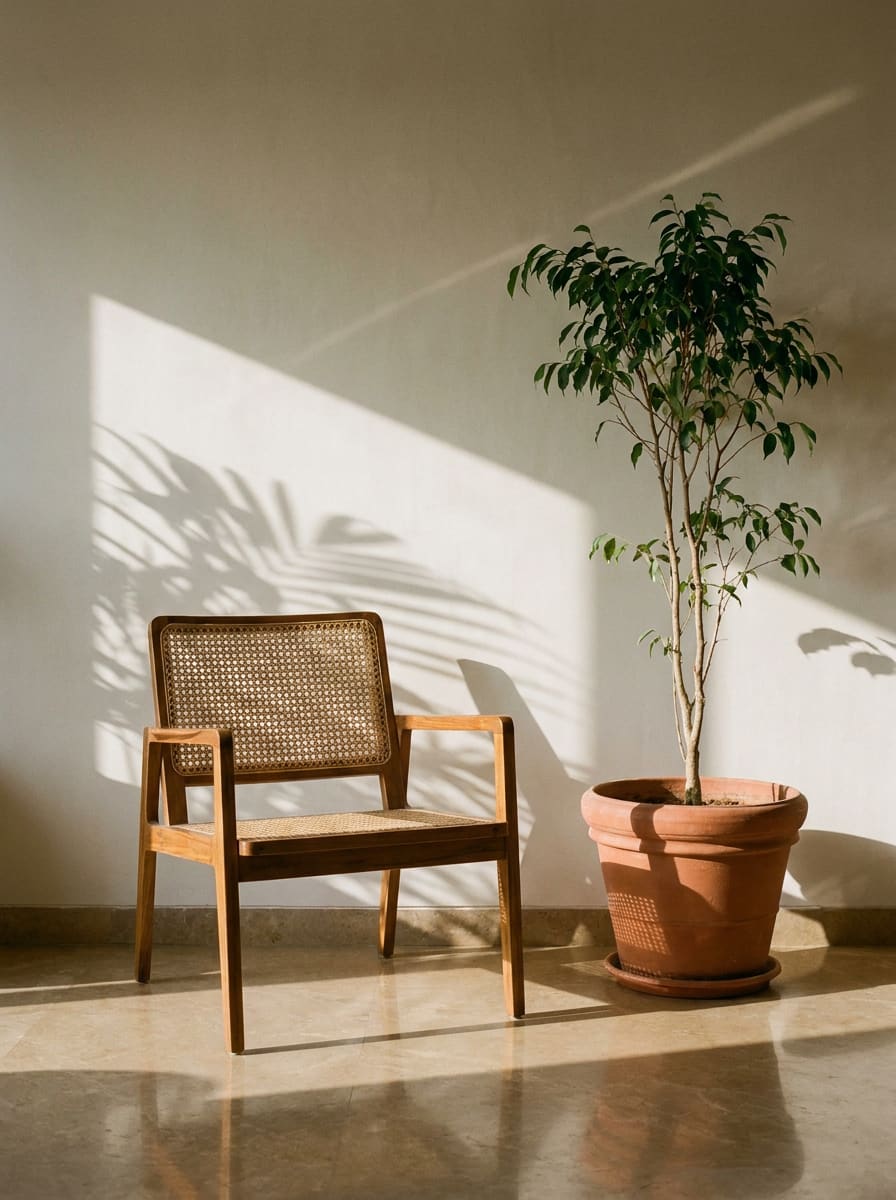
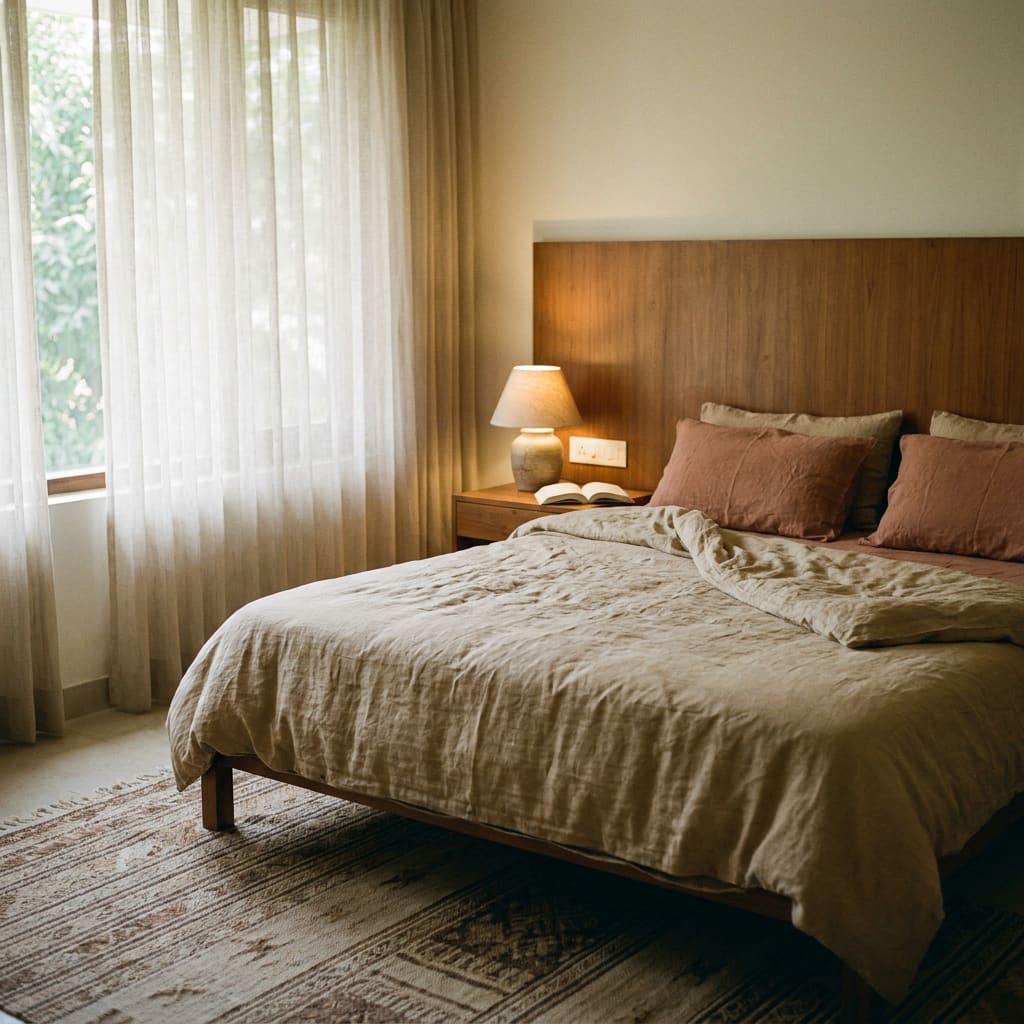
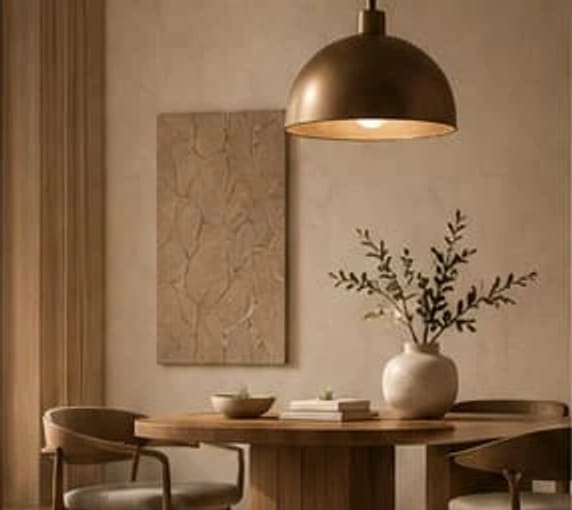
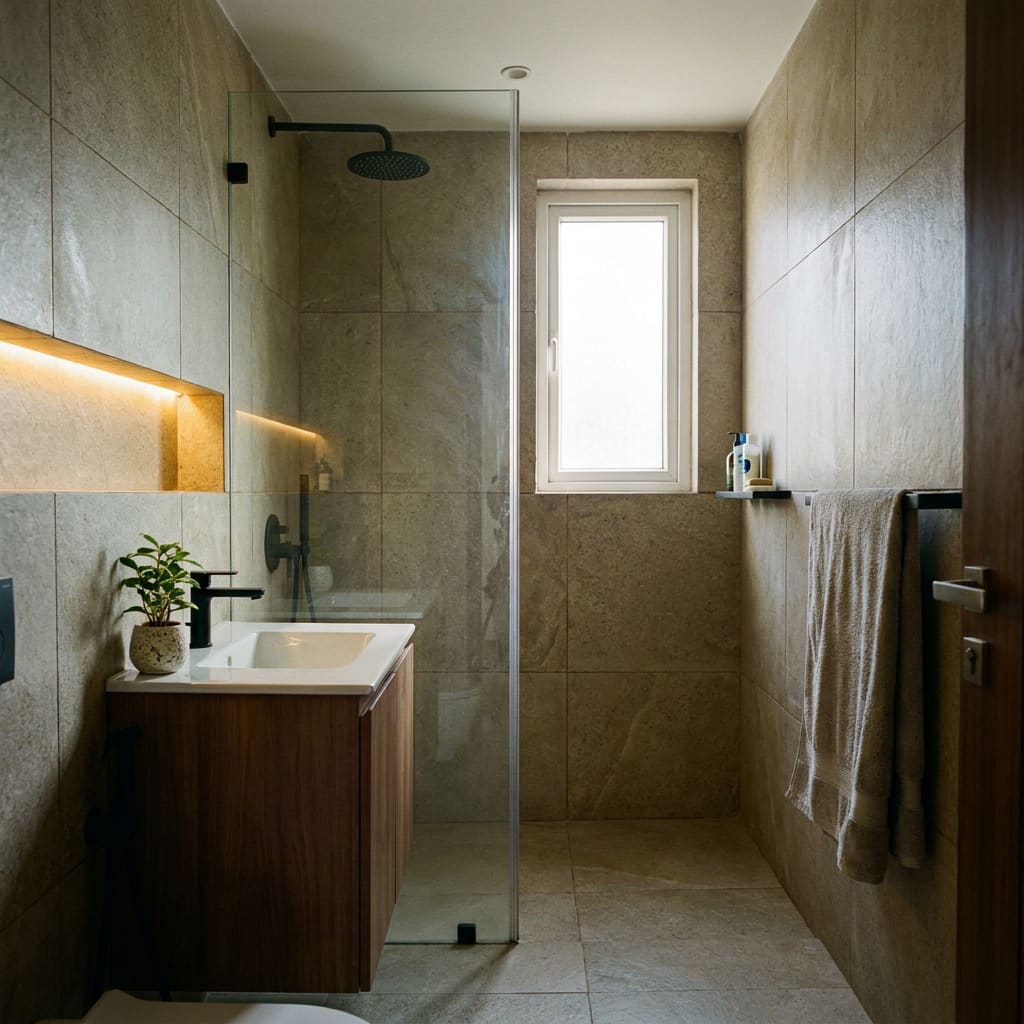
Canvas is a feed of rooms finished by verified professionals in Gurugram. Filter by room and style, then open any photo to see the project and the person who made it.
App screens with sample content.
What it does
Real rooms only
Every idea comes from a verified professional’s portfolio.
Search the way you talk
Type “warm modern living room” and Canvas turns it into filters you can change.
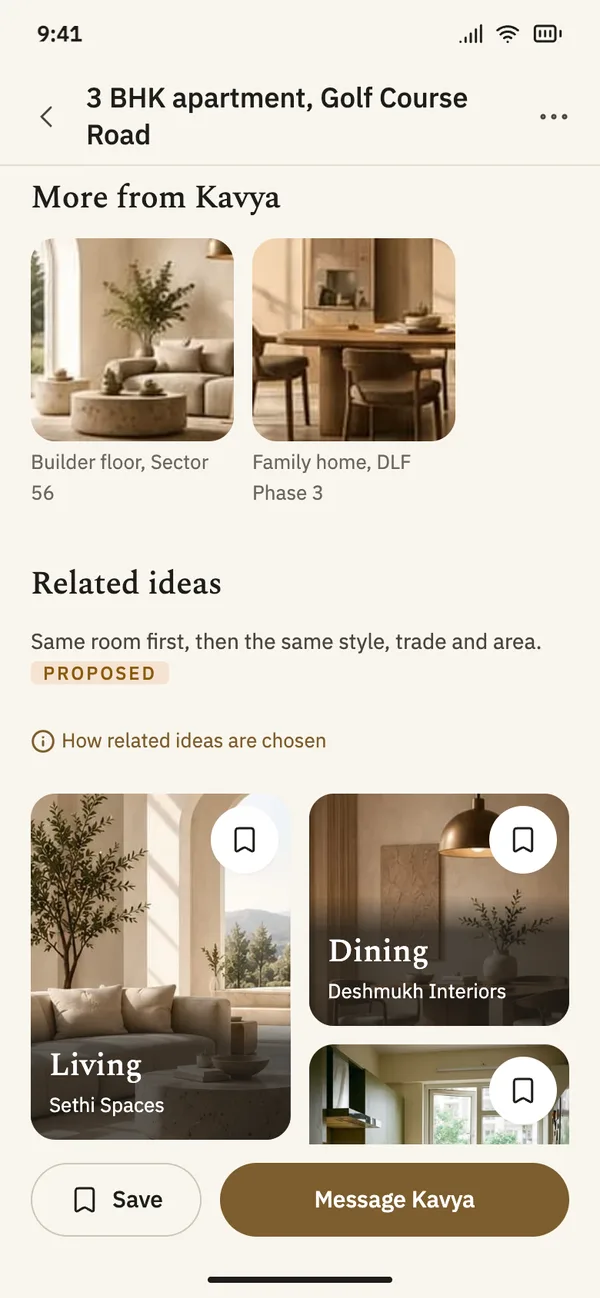
More like this
Each idea shows similar rooms, matched on room, style and colour, with a note on how they were chosen.
An order you can read
Canvas shows how ideas are ordered, and you decide whether your preferences shape the feed.
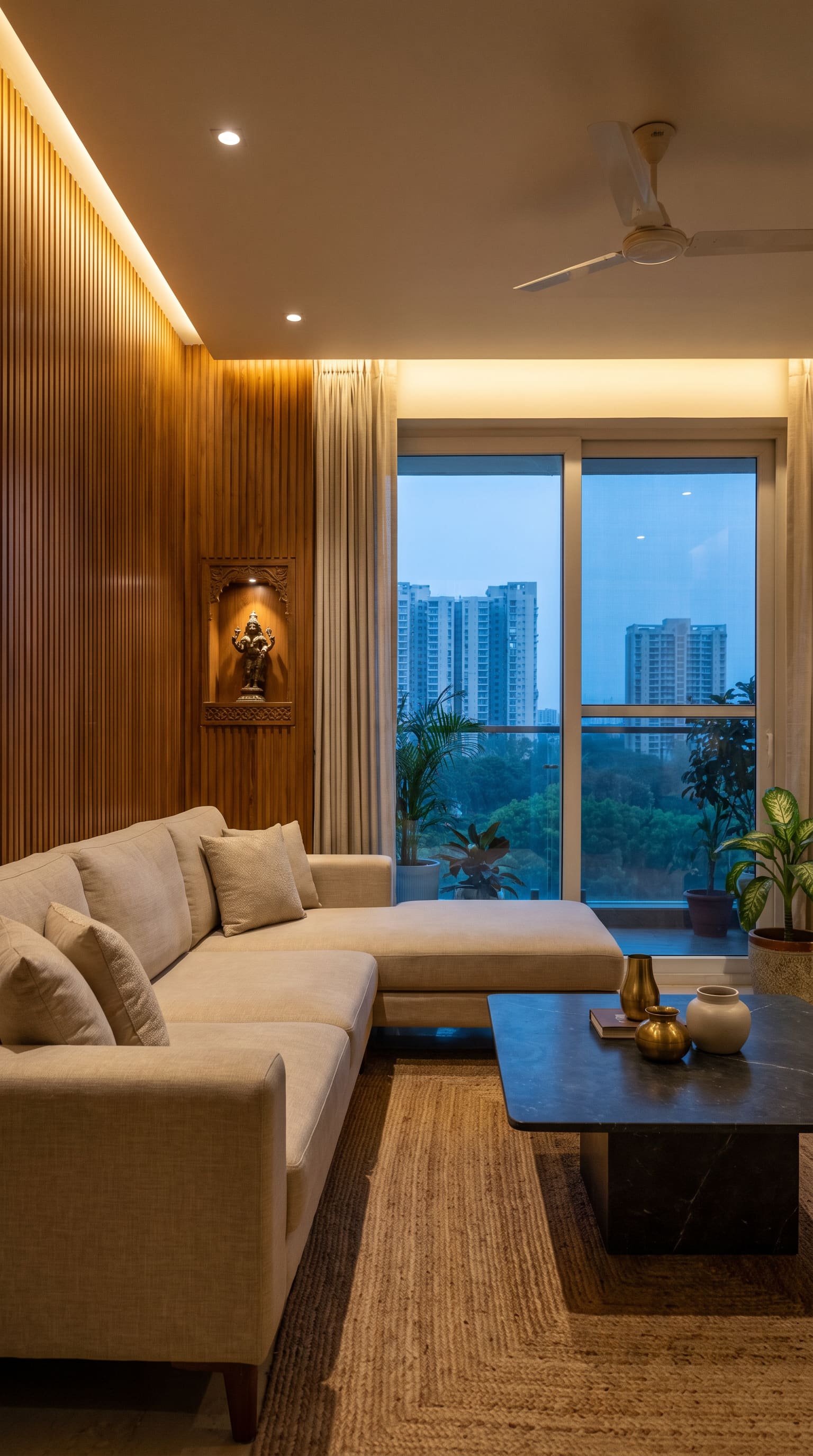
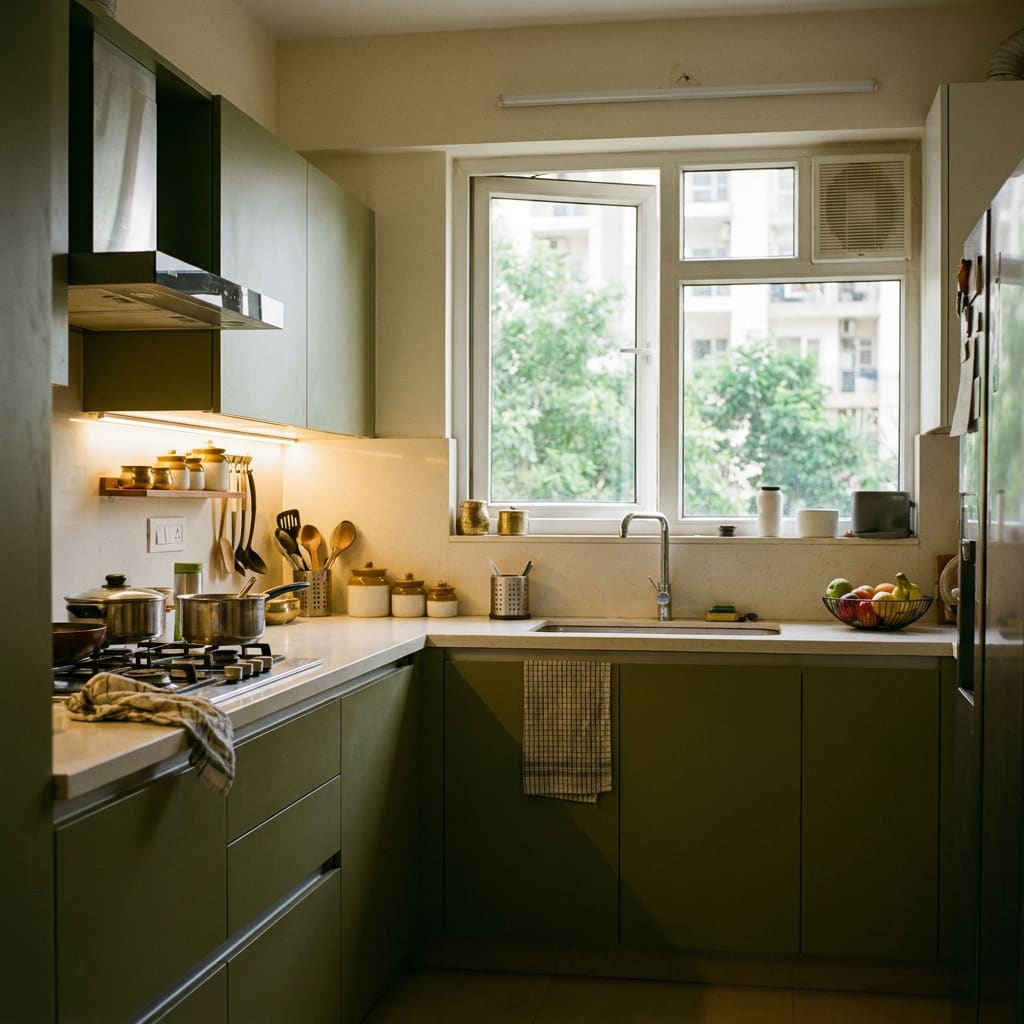
The kind of rooms you will find
- Living
- Kitchen
- Living
- Bedroom
- Dining
- Bathroom
- Living

- Materials

From an idea to a board
Step 1
Scroll real rooms
Choose a room, a style or an area, or keep it on All. Every photo is from a finished project.
Step 2
Open an idea
See the project, the materials named by the professional and similar rooms, then message the person who made it.
Step 3
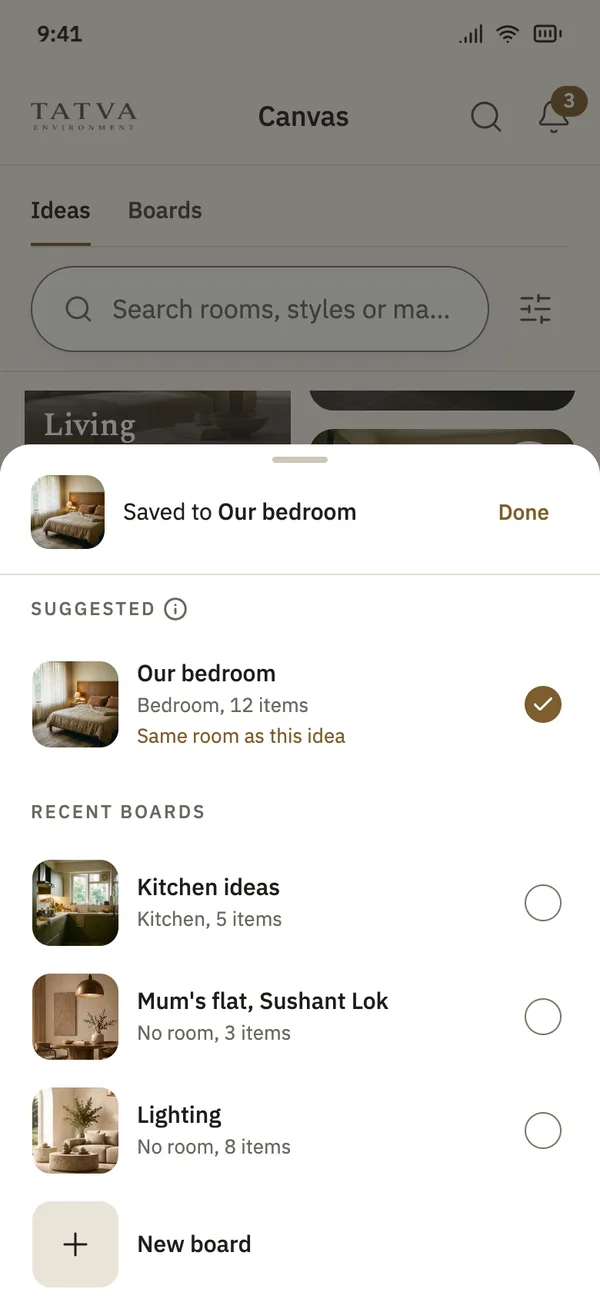
Save it to a board
Tap the bookmark. Canvas suggests a board for the same room, or you can start a new one.
Step 4
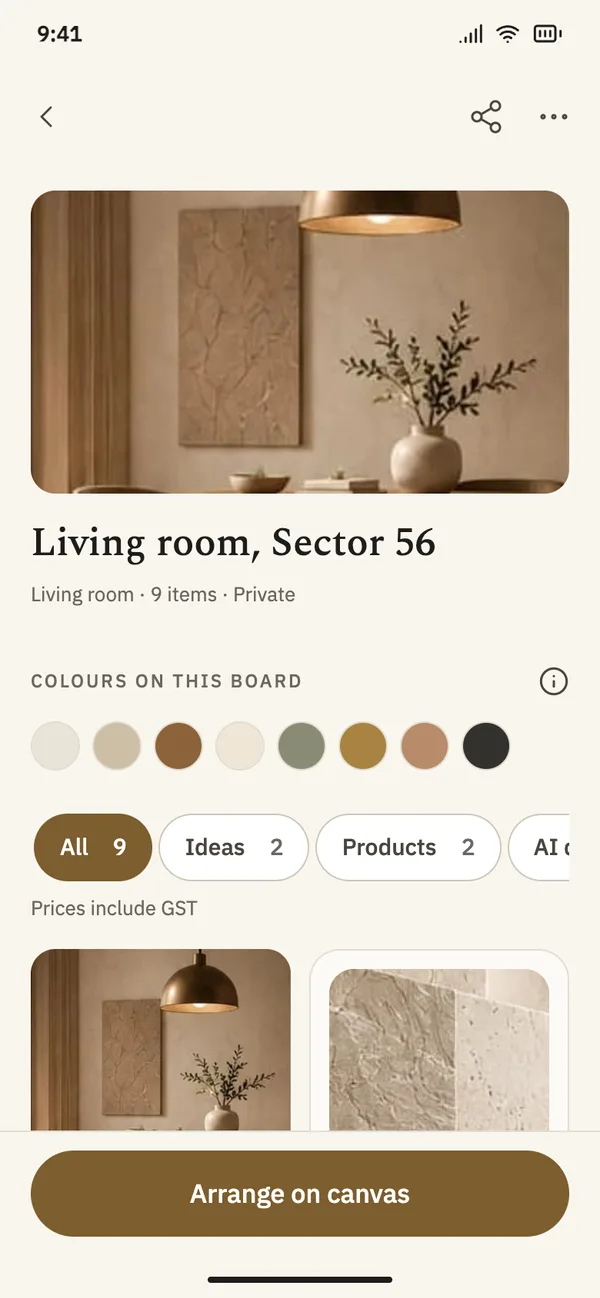
Keep a board for each room
Ideas, products and notes together, with the colours you keep coming back to.
Boards
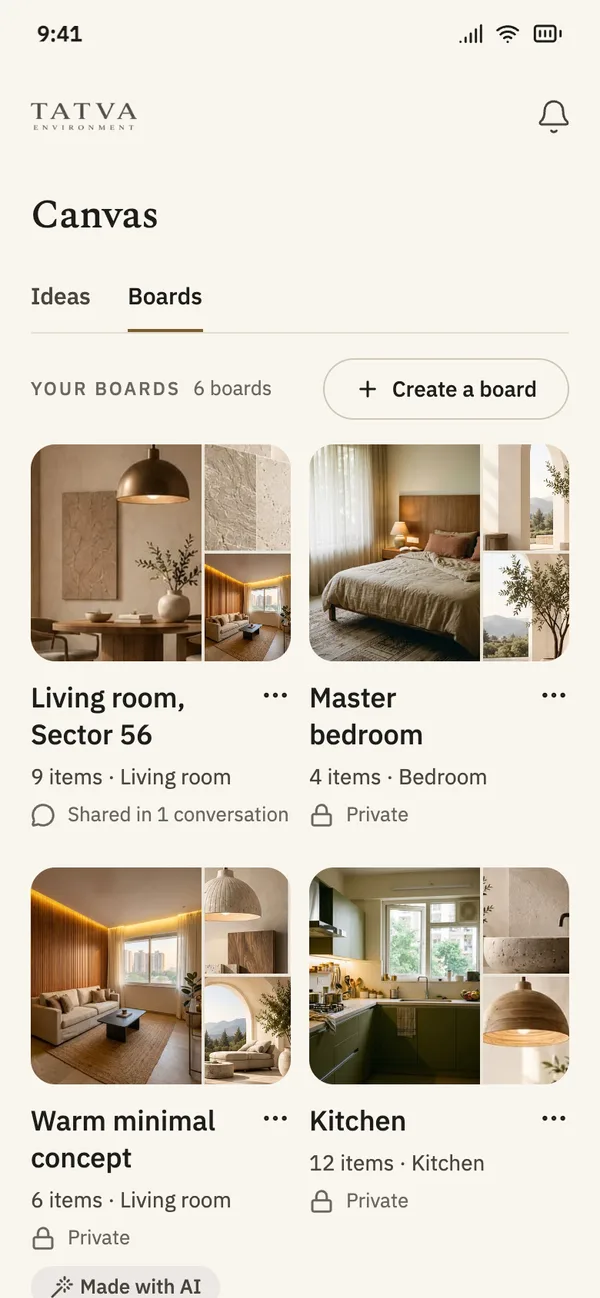
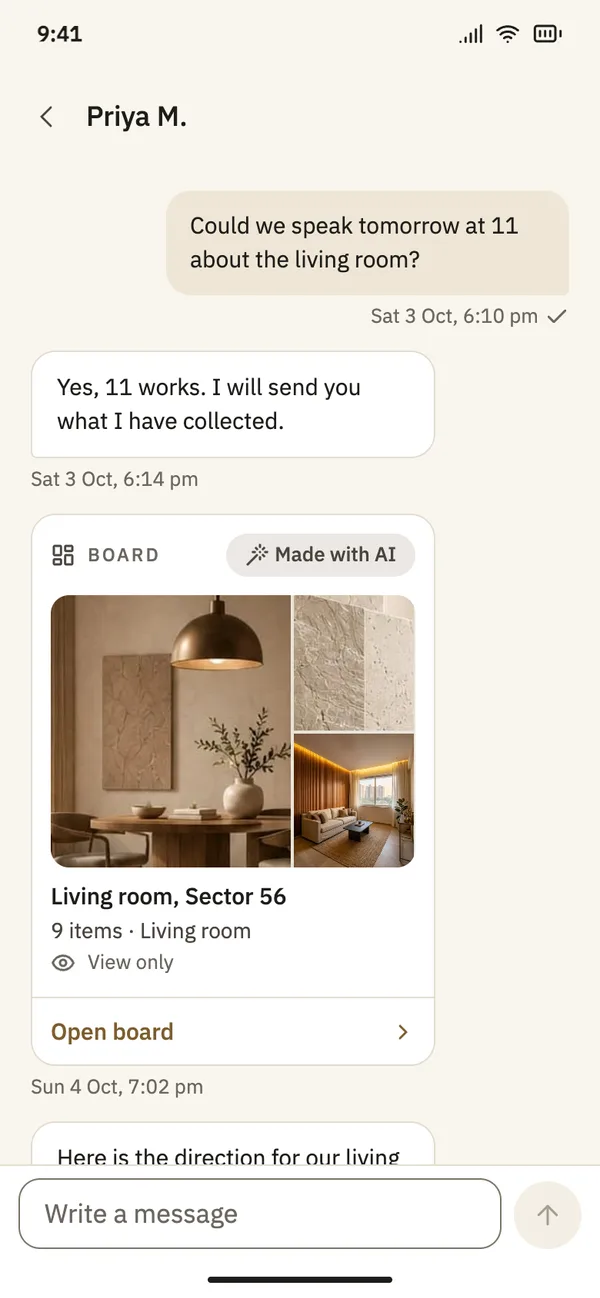
Save ideas into boards, then share them with the person doing the work.
Make a board for each room and add ideas, products and notes. A board stays private until you share it in a conversation.
Save from anywhere
Tap the bookmark on any idea and pick a board, or start a new one.
See the colours
Each board shows the colours running through what you saved.
Private by default
Nobody sees a board unless you share it.
Share in a conversation
Send a board to a professional, and stop sharing whenever you like.
Questions
- Where do the photos in Canvas come from?
- From the portfolios of verified professionals on Tatva. There are no stock photos and no AI images in Canvas.
- Who can see my boards?
- Only you, until you share a board in a conversation with a professional. You can stop sharing at any time.
- How is the feed ordered?
- Canvas shows how ideas are ordered in the app. If you set preferences, you choose whether they shape the feed.
- Can I ask for a photo of mine to be removed?
- Yes. Report the photo in the app and our team will look at it.